
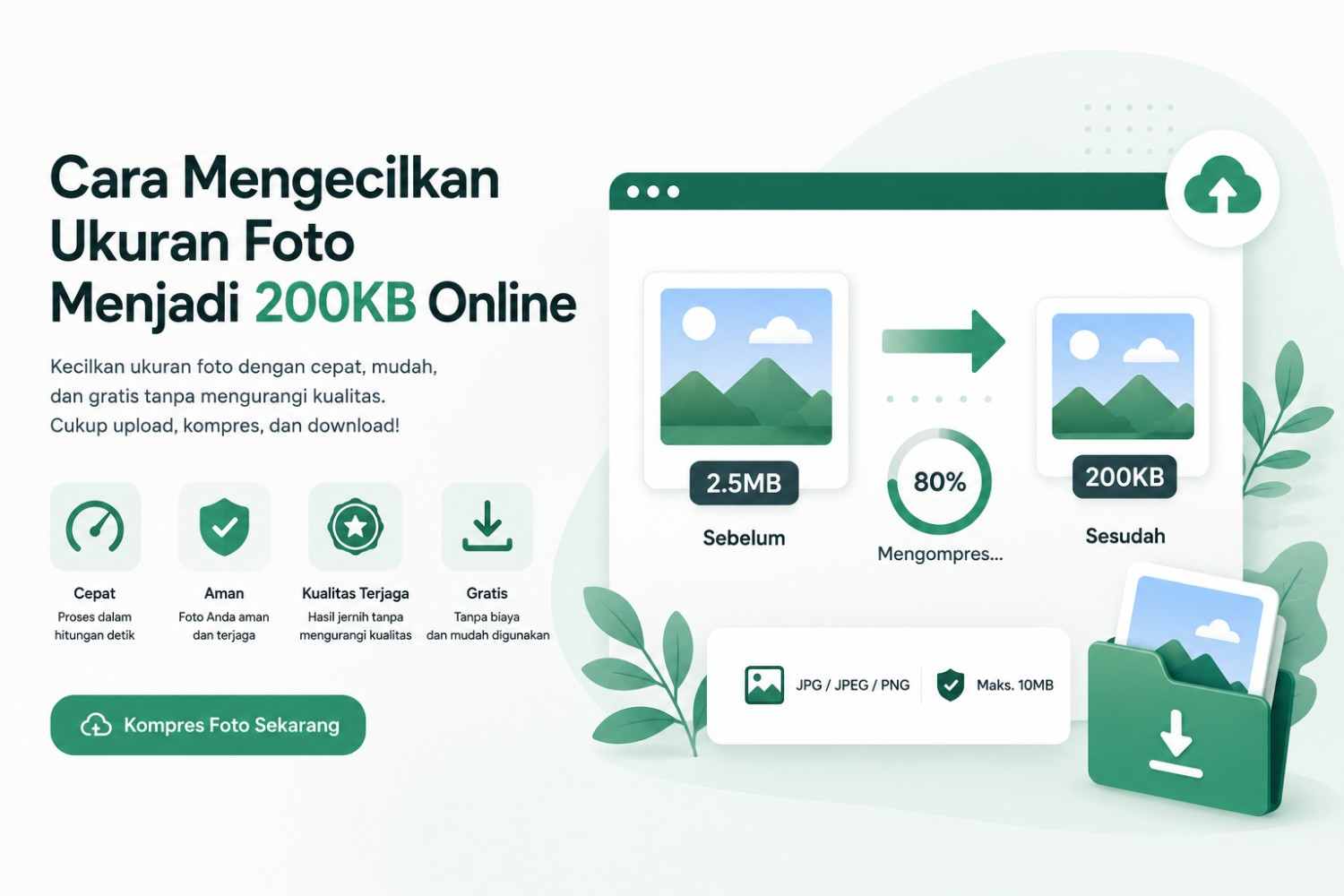
Oversized photos are often a problem when uploading images to online forms, websites, registration portals, emails, or other digital services. If a platform requires a maximum photo size of 200KB, you'll need to reduce the file size before uploading.
The easiest way to reduce a photo's size to 200KB is to use an online photo compression tool. Simply upload the image, compress it, check the resulting size, and then download the reduced image. This method can be done on a mobile phone or laptop without the need for complex editing applications.
However, reducing the size of a photo isn't just about reducing the KB count. You also need to ensure the image is clear, not too blurry, and meets the requirements of the place where it will be used. In this guide, you'll learn how to reduce a photo to 200KB online, how to maintain image quality, the differences between file size and resolution, and some tips if the compression result is still too large.
What is 200KB Photo Size?
A 200KB photo means the image file has a storage size of approximately 200 kilobytes (KB). File size differs from image size or dimensions.
As an example:
- 200KB indicates the file size.
- 800 × 800 pixels indicates the image dimensions.
- JPG, PNG, and WEBP indicate file formats.
- Resolution relates to the amount of detail or pixels in an image.
Therefore, when a form asks for “maximum photo 200KB”, what is usually meant is the file size, not the length and width of the image.
A photo with dimensions of 1000 × 1000 pixels isn't necessarily 200KB. The file could be 100KB, 500KB, or even several MB, depending on the format, quality, color, and compression level.
How to Reduce Photo Size to 200KB Online
If you want to reduce your photos to around 200KB or a maximum, using an online photo compressor is one of the most convenient ways. Here are the simple steps.
1. Prepare the photo you want to reduce in size
First, select the photo you want to reduce in size.
The photos can come from:
- Cellphone Camera
- Digital camera
- Screenshot
- Scan result file
- Google Drive
- Laptop storage
- Download folder
- Smartphone gallery
Before compressing, make sure you've selected the correct file. If the photo is for registration or official documents, also check whether the platform requires a specific format, such as JPG or JPEG.
2. Open the Online Photo Compressor Tool
Next, open a tool that can be used to reduce image size. You can use an 200KB photo compression to reduce file size directly through your browser.
Using online tools makes the process simpler because you don't have to understand photo editing applications that have many technical settings.
3. Upload Photos
Select a photo from your device and then upload it to the compressor page. If you're using a mobile phone, you can usually select the file directly from your gallery or device storage.
If using a computer or laptop, select the image from the folder where the file is saved. Ensure a stable internet connection until the upload process is complete.
4. Compress Photo Size
Once the image has been successfully uploaded, run the compression process. The photo compression tool will attempt to reduce the file size by optimizing the image data. The goal is to produce a lighter file size while maintaining the best possible image appearance.
If the initial size of the photo is quite large, for example 2MB, 5MB, or more, the compression level required to reach 200KB is certainly higher than a photo that was originally only 300KB in size.
5. Download the compressed photo
Once the process is complete, download the results to your device. It's best not to upload the photo directly to the destination form.
Open the file first and check:
- Is the face or object still clearly visible?
- Is the text in the image still readable?
- Do the colors still look good?
- Is the file size appropriate?
- Does the file format meet the requirements?
If everything is correct, the photo is ready to use.
Difference Between Photo Compression and Resizing
Many people think that compression and resizing are the same, even though they are different concepts.
Photo compression is the process of reducing file size by reducing the quality of the image data (usually through a specific algorithm), without significantly changing the pixel dimensions of the photo.
Resizing a photo is the process of changing the dimensions or resolution of an image, for example from 4000×3000 pixels to 1000×750 pixels, which will automatically reduce the file size.
To achieve the 200kb target, a combination of both is usually used at once—the photo is reduced in size slightly, then the quality is compressed, so that the final result still looks clear even though the file size is small.
Why Can Photo Sizes Be So Large?
Photos from modern smartphone cameras can be several MB in size because the camera captures so much detail. Some factors that affect file size are:
Image Resolution
The more pixels in an image, the more information it needs to store. A 4000 × 3000 pixel photo typically requires more space than an 800 × 600 pixel image.
Photo Quality
High quality retains more image detail. The more detail retained, the larger the file size.
File Format
Each image format has a different storage method. JPG or JPEG are often used for photos because they can produce relatively small files.
PNG is excellent for images that require transparency or specific detail, but some types of images can result in larger file sizes. WEBP is a modern format also designed for efficient file sizes.
Image Contents
Photos with lots of color, detail, texture, shadows, or complex objects typically require more data than simple images. Therefore, two photos with the same dimensions won't necessarily have the same KB size.
What If the Photo Is Still Over 200KB?
Sometimes a single compression isn't enough, especially if the original file is very large. If the resulting photo is still over 200KB, you can try the following steps.
Reduce Image Dimensions
For example, if a photo still has dimensions of 4000 × 3000 pixels, you can reduce its dimensions first. Fewer pixels means less data needs to be stored.
Use JPG for Photos
If the image is a photo and the requirements allow JPG, this format is often suitable for smaller file sizes. However, do not change the format if the destination system requires a specific format.
Compress from Original File
If you've edited or resaved a JPG multiple times, it's best to go back to the original photo and optimize it from scratch. This can yield better results than repeatedly compressing an already compressed file.
Crop Unnecessary Parts
If a large area of a photo isn't needed, you can crop it. For example, for a profile photo, you might only need the head and shoulders. Removing unnecessary areas can also help reduce image data
Frequently Asked Questions (FAQ)
1- How to reduce photo size to 200kb quickly?
The quickest way is to use an online photo compression site likekompresjpg200kb.com. Simply upload the photo, wait a few seconds, and then download the image, automatically compressed to 200kb, without having to manually adjust any settings.
2- Will reducing the size of a photo reduce its quality?
Yes, compression technically does reduce image quality slightly because some of the data is compressed. However, with good compression tools, this loss of quality is usually not noticeable to the naked eye, and the photo remains suitable for use on forms and official documents.
3- Is there a way to reduce the size of a photo without additional applications?
Yes. You can use an online photo compression site that can be accessed directly through your phone or laptop browser, without needing to download or install any applications.
4- What is the most recommended photo format to upload to the online form?
JPG or JPEG format is the most commonly accepted by almost all online registration systems in Indonesia, because its size is more compact than PNG but the quality is still good enough for document purposes.
5- Why are the photos from my phone always large?
Modern mobile phone cameras typically record photos at high resolutions (12MP, 48MP, or more), resulting in a high level of detail and consequently large file sizes, often reaching several megabytes per photo.
Conclusion
Reducing a photo's size to 200KB doesn't require complicated editing software. With an online photo compression tool, you can reduce file size on your phone or laptop in a few simple steps.
The most important thing is not to solely focus on 200KB. Also consider photo quality, dimensions, file format, and the requirements of the platform where the image will be uploaded. If the maximum limit is 200KB, aim for a size that's below that limit but still large enough to maintain clarity.
Use the original file as the source, choose an appropriate format, avoid excessive compression, and always check the results before uploading. This way, you can get photos that are lighter, easier to send, and ready to use for various online needs.